PRODUCT CREATIVE → FACEBOOK PAGE POST
Facebook Page publishing.
Your product, ready to share.
Choose a finished BatchAd campaign image and prepare a Facebook post with an AI-written caption based on your product details. Review the destination, image and copy before you confirm publication.
Create a pack to publish ↗Free account required · Facebook Page access and permissions required
What you need before publishing
- A signed-in BatchAd account and a completed image campaign in your library.
- A Facebook account with permission to publish content to the intended Page.
- Successful authorization of BatchAd with the requested Page permissions. Availability depends on your account, Page access and Meta authorization.
- Permission to use the product images and copy you publish.
From a finished creative to a confirmed post
- Select an image. Open a completed campaign, choose your creative and use its Facebook publishing action.
- Connect your Page. Complete the Facebook authorization flow and return to BatchAd. A personal profile is not a Page destination.
- Review the prepared caption. BatchAd prepares copy from the selected creative and product evidence. Check the wording, product accuracy and destination Page.
- Confirm publication. Use the publish button only when you are ready. The image and caption are sent to your selected Facebook Page.
- Check the result. Open the Facebook post from the returned link. If the result is uncertain, check your Page before trying again to avoid duplicate posts.
Start with a product image you recognize
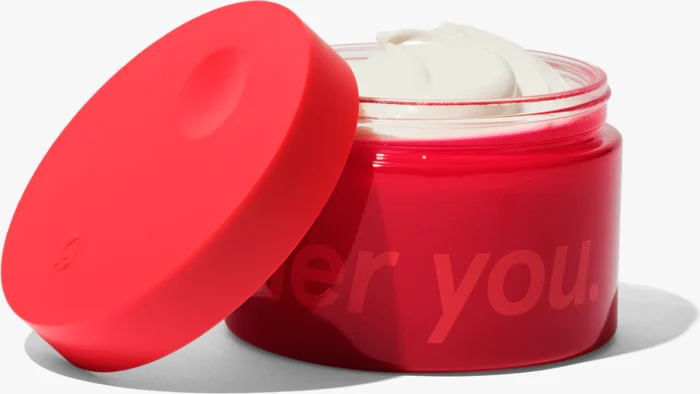
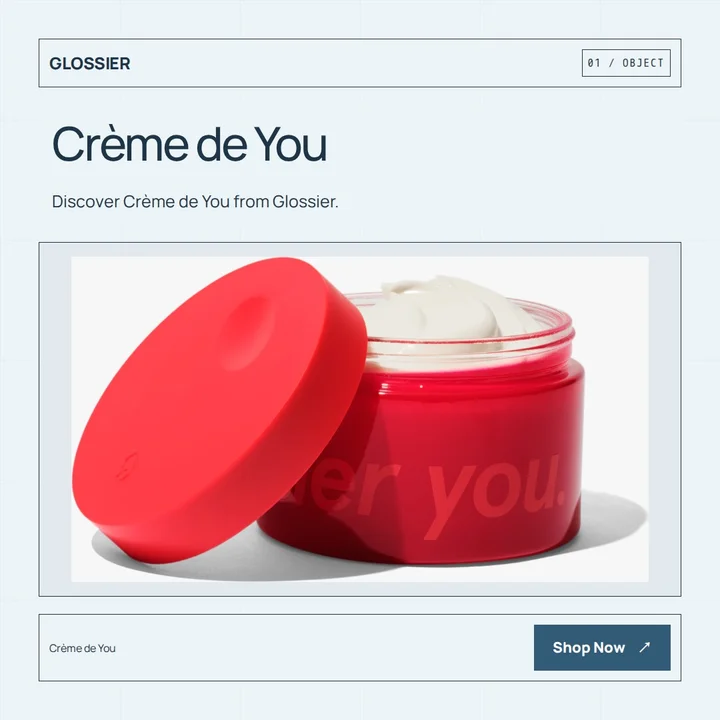
Editorial demo, not a customer endorsement or performance case study. Product imagery and trademarks belong to their owners.
Page publishing and paid advertising are different
This flow publishes a post to a Facebook Page after your confirmation. It does not launch paid ad campaigns, boost posts, manage budgets or report ad performance. Instagram, personal-profile publishing and scheduled posts are not supported by this flow.
To use your creatives in other social or advertising tools, download the JPGs or ZIP and upload them there. Compare the export formats.
If your Page does not appear
- Check that you authorized the Facebook account that can publish to the Page.
- Review the Page selection and requested permissions in the Facebook authorization flow.
- If authorization has expired, reconnect before preparing another post.
- If publication cannot be confirmed, inspect the Page before submitting again. Disconnecting BatchAd does not remove posts already published to Facebook.
For account-specific help, contact [email protected]. See Privacy and data deletion for connection-data handling.
Create the creative before you publish
Make ads from a Shopify product link ↗
Open the creative studio ↗